
How to sync Google Chrome browser settings across multiple computers? Bookmarks sync (Google bookmarks sync in fact) between multiple computer helps you to have all your chrome bookmarks readily available across those systems. These browser settings includes your bookmarks, extensions, apps, theme, and browser preferences.
If you are able to sync your bookmarks and preferences between computers then you don’t have to worry about taking backups of bookmarks.
Google Chrome Sync is an option to synchronize your data like bookmarks across computers by storing it online. You can easily manage all your data which is stored online from Google Dashboard. This online storage of your preference data ensures continuous availability as well as data security since we are storing them as part of Google account.
How Google Chrome Browser Sync across multiple computers is achieved?
Primary requirement to setup Chrome Sync is that you should have a Google Account. This is because when you enable sync on a computer, your Google Chrome settings on that computer are saved in your Google Account. When you open Google Chrome from another computer after signing into your Google account and if the “Sync” option is enabled the Google Chrome copies the settings to computer from your online account. The changes are immediate, when you change some settings in one computer that will be reflected in any computer where you have enabled Chrome Sync.
Setup Google Chrome Sync
- Click the wrench icon wrench icon on the Chrome browser toolbar.
- Select Options (preferences) ->Personal Stuff tab.
- Click Set up sync in the “Sync” section.
- Google will ask you to login as seen below.
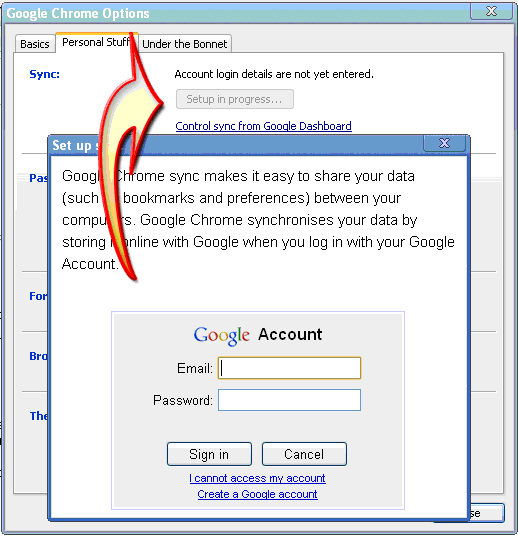
- Once logged in the option can be chosen as below.
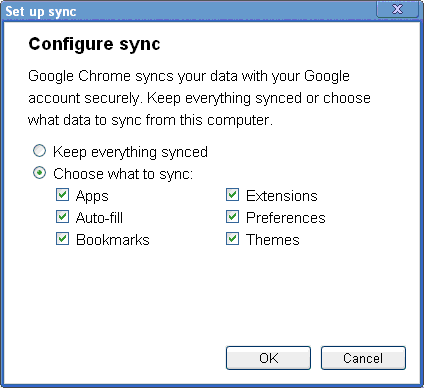
- You can sync everything or any specific item if you want. Click OK.
Once you have configured Chrome Sync you can manage it from your Google dashboard. You can stop sync from either the dashboard or from the “Sync” section of your browser preferences. See dashboard showing sync details below.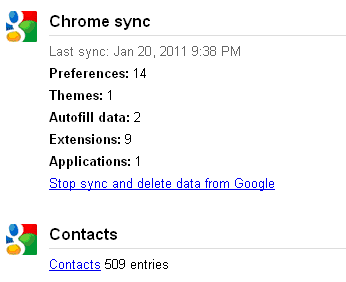


Before you go, subscribe to get latest technology articles right in your mailbox!.