
How to Secure wordpress by changing default administrator username? As we discussed there are many must do steps to secure your wordpress installation. One among them is changing the default administrator username.
By default the administrator account name is “admin” and if you keep the same admin username is not a good idea. Rename the administrative account will keep your wordpress blog bit more safe. You can change the default administrative account details wordpress administration interface or from your either through phpMyAdmin interface or by using MySql command line and a simple SQL query.
Related:
Must Do Tips To Secure WordPress Blog and Website
How To Recover WordPress Admin Password or Reset Admin Password
Create a new Administrator using Admin control panel
Log in to your wordpress administrator control panel interface. Click on “Add new” under the “Users” menu. Create a new user and give the “Administrator” role as shown below.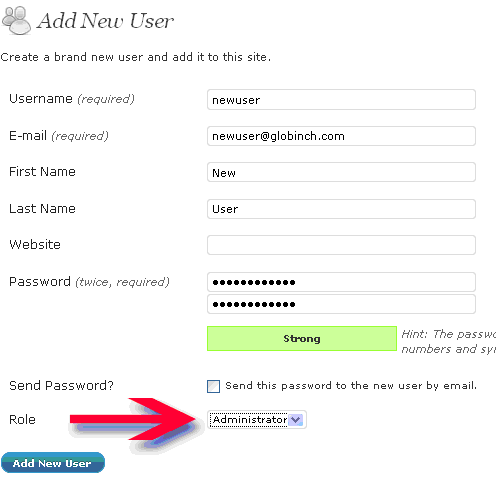
After creating this admin log out and log in again using the new account. Go to “Users” menu and click “Users” link. In that page delete the old default “admin” user.
Rename the administrative account using phpMyAdmin tool
- Log in to your phpMyAdmin interface and select your database and click on “wp_users” table.

- Edit the “admin” row by clicking the pencil icon just before admin username.
- Change the username “admin” to the new username.
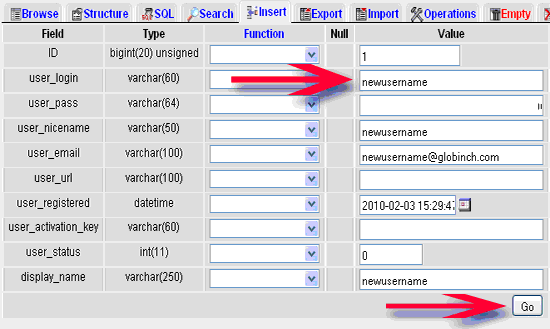
- Click the “Go’ button. You are done. Now you can log in with your new administrator username
Rename the administrative account using MYSql sql query
- First connect to your MySQL server using MySql client.
1 | host>>mysql -u "username" -p |
- Enter your db password.
- Select the database (Use your database name instead of “db name”)
1 | Mysql>>use "db name" |
- Issue the below SQL query to change username.
1 | mysql>>UPDATE wp_users SET user_login = 'New Username' WHERE user_login = 'admin'; |
Where “New Username” will be your new admin user name. Execute this query adn you will be done.
- or use the blow query
1 | mysql>>UPDATE wp_users SET user_login='admin' WHERE ID=1; |
Here the Vlaue of ID (ID=1) should be the ID of Admin user column in your WP_USERS table.
This will update your administrator username to the new username you provided. Now you can log in with your new administrator username


Before you go, subscribe to get latest technology articles right in your mailbox!.