In this post we will discuss how to setup custom from address so that you can manage multiple email accounts from the Gmail interface as well as how to avoid the “on behalf of” problem while using custom from address. Gmail‘s custom “From:” feature lets you use Gmail to send messages with another of your email addresses listed as the sender in place of your Gmail address.
To use this feature you should have alternate address as part of a separate account. Each time someone replies to a message you send using a custom ‘From:’ address, the reply will be delivered to the ‘From:‘ address rather than your Gmail address.
But if you’d like replies to be delivered to another email account,you can do it by adding ‘reply-to‘ address during the setup process.
How to setup Custom From address in Gmail
You can configure custom from address easily. If you want to use another Gmail address as custom from address , you need to create that first. You can also setup email address of another domain. For example your office address.
Steps to setup custom “From” address
- Sign in to Gmail.
- Click Settings -> Accounts and Import.
- Find “Send mail as” section and click Add another email address.
- In the ‘Email address’ field, enter your name and alternate email address.
Here you can also specify a different “reply-to” address, if you want to the replies to be delivered to another email account. You can even setup you original Gmail address here.
See below.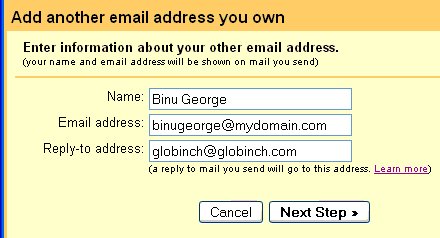
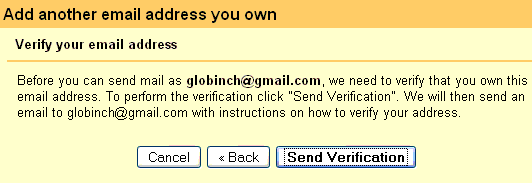
- If you use another Gmail address as the custom “from” address then the in the next screen you can select the “Send Verification” option to complete the setting. Click Send Verification. Gmail will send a mail with confirmation code and link.Either click the link in the message Gmail sent or enter the confirmation code in the Accounts section of your Gmail setting.
- If you have used another domain email address , in the next screen you need to provide the SMP server details as shown below.
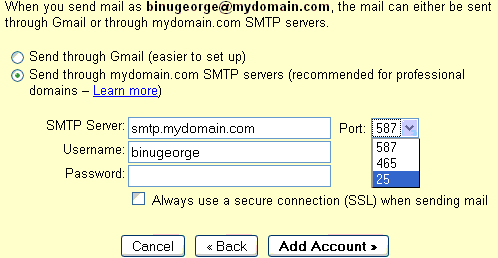
- Enter the SMTP server (e.g. smtp.domain.com)
- Your username (account name)
- Your password for that account.
- Port
- SSL Option
The click “Add account”
Gmail will send a mail with confirmation code and link. Either click the link in the message Gmail sent or enter the confirmation code in the Accounts section of your Gmail settings.
“on behalf of” problem with custom from address.
Some email clients including some versions of Microsoft Outlook show these messages as coming “From username@gmail.com On Behalf Of customaddress@mydomain.com” when you choose sending mails from Gmail using custom from address. This is because Gmail will include your Gmail address in email header’s sender field to prevent mail from being marked as spam. This will show the “on behalf of ” in mail clients. To avoid this you need to use the SMTP servers of your other email provider as show in the third screen-shot above. Read further here.
Once you have completed all the steps mentioned above you can use the verified custom from address while sending mail or while replying to any mail. You can pick an address from the drop-down menu in the ‘From:’ field to use a custom ‘From:’ address when composing a new mail.
If you’re replying or forwarding a mail, click “change” next to the ‘From:’ field first. There is an option to choose to automatically use the address to which a message was sent.
