
Blocking Websites or how to block URLis a common problems mainly faced by parents and employers.
Many parents worries about children wasting time on the Internet by chatting and browsing through inappropriate contents. Children could be interacting with complete strangers and even sharing personal information and this should be controlled to avoid unwanted consequences.
The following instructions are for blocking malicious and unwanted websites in all versions of Internet Explorer.
Read: How to Block website in Firefox? Blocking URL in Mozilla.
So how do we block a site or URL being accessed from the PC?
There are many options available.
Parental Control Applications
Most of the paid anti-virus software offers parent control features.There you can setup the list of websites to be blocked.
Parental control software like Net Nanny or Avast Anti-Virus or Norton Internet Security are very good but they are not freewares and cost money.
Block websites or URLs by configuring your IE (Internet Explorer) -Block Individual Websites
URL blocking can be achieved just by following few steps in Internet Explorer version 5 and above.
Step 1. Open IE and click on Tools -> Internet Options.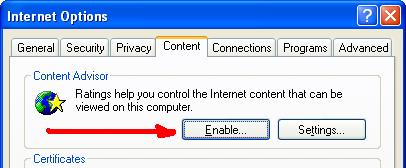
Step 2. Click on the ‘Content‘ Tab.You can see the Content Advisor.Click Enable
Step 3. Click the Approved Sites tab. If you want to block the complete website put * in front. Or type the address of the website.
Click Never and then OK.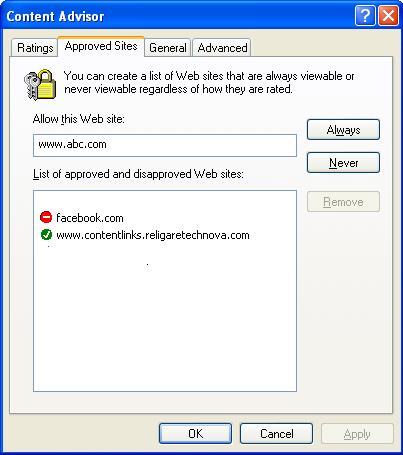
Step 4. Click on the General tab and make select the option based on your requirements.
Step 5. You can setup admin password here.Enter a password you can remember easily with a hint.
Step 6. Click OK.
Now the URL you have configured will be blocked and if you selected the “ Supervisor can type a password to allow…” check box in the General tab a window will appear asking for permission. Otherwise the window will appear displaying the “no ratings message”.


Before you go, subscribe to get latest technology articles right in your mailbox!.
i want my facebook unblocked thank you heather