
Google Chrome 11 is the first browser that supports HTML5 speech input API . This means that you’ll be able to talk to your computer, and Chrome Browser will be able to interpret it and will be added to your input fields. As mentioned in the HTML5 speech input API specification “The API itself is agnostic of the underlying speech recognition implementation and can support both server based as well as embedded recognizers. ” HTML5 provides the interface the implementer needs to provide the actual speech recognition API. The Chrome should be using the the Google Speech API as a default
This allows you to add speech recognition features to your website. Even though only Chrome supports this feature as of now, other browsers may follow in the future.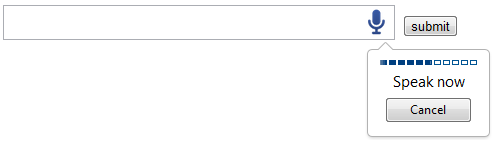
As mentioned here the Chrome implementation of the seems to be like the audio is collected from the microphone, and then passed via an HTTPS POST to a Google web service, which actually converts the audio to text and responds with a JSON object with the results.
How to Use HTML5 Speech Input Fields
The x-webkit-speech attribute can be used on any HTML5 input element with a type of text, number, telephone, or search except text area. It adds a microphone symbol to your input filed and on click will prompt you to speak. See the example below. You can speak to the computer to add the search term and then click the button to search in Google. Please open this post in Google Chrome Browser to see this in action. In other browsers you may not see the microphone image which you can click.
See the code below.
1 2 3 4 | <form name="speechtest" method="GET" action="http://www.google.com/search"> <input type="text" style="font-size:25px;" name="q" size="30" x-webkit-speech /> <input type="submit" value="Search" /> </form> |
The only extra attribute of the HTML component “input” is the “x-webkit-speech“. Chrome renders and interprets it and add the necessary call back implementation to it.
Chrome 11 by default enables the Speech Recognition. If it doesn’t you can enable by running Google Chrome with the –enable-speech-input flag. On the Chrome short-cut tab, modify the Target field to include the flag “–enable-speech-input“. See example below.
C:UsersbgAppDataLocalGoogleChromeApplicationchrome.exe –enable-speech-input


Before you go, subscribe to get latest technology articles right in your mailbox!.
Very Nice .
Thanks for sharing such a wonderful post!