
Bing Webmaster Tools provides a number of website diagnostic tools to analyse your website in terms of SEO, keyword research, markup validation etc. Bing Webmaster tools also offer a wide range of features to help webmasters to optimise their website and get indexed in Bing Search Engine.
Like the Google Webmaster Central you can submit your sites and URLs to Bing Search Engine to speed up the indexing process. Bing Webmaster tools gives you insight into your indexed pages, search volume, SERP rankings etc. The other important features provided includes the crawl details and crawl errors. There are also plenty of reports to help webmasters to analyse your website indexing and search related issues.
Related Articles:
- Google Penguin Update and An SEO Recovery Checklist
- Top 15 On Page Optimization Checklist
- Top 10 Essential SEO Tips to Remember.
Bing SEO Tools: SEO Analyser tool
If you want to do an SEO analysis of your website pages, the Bing Webmaster tools provides an SEO Analyser tool. This tool provides you very accurate information on SEO issues in your pages. The advantage of Bing SEO Analyser tool is that, it pin point the location of SEO issue on the page. It also shows source code lines where the issue is reported.
The SEO reports are particularly useful. These reports gives complete reports on areas of your site may need work to comply with SEO best practices. To help you with Bing Webmaster Centre includes a SEO Analyzer Tool now.
The SEO Analyzer tool can be used to test your web pages to find out potential SEO issues. The tool provides SEO suggestions. The tool provides three tabs namely “Analyzed”, “Page Source” and “Original” as seen in the image below.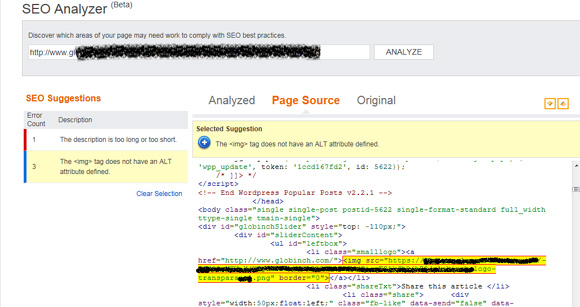
Click on the “Page Source” tab. You can easily navigate to the error location and find out where you need to change and what you need to change. For example in the below error report there are two errors listed. I clicked on the The “img” tag does not have an ALT attribute defined.” error and opened the “Page Source” tab. You can see the up/down arrows on right side top. Just click on this button to locate the exact position of error. See the image above. It clearly shows that the image ALT tag is missing.


Before you go, subscribe to get latest technology articles right in your mailbox!.