
How to create or resize hard disk partition in windows 7?
Windows 7 partition or hard drive partition management is quite easy and straightforward. Windows 7 has the in-built “Disk Management Utility” which allows us to manage hard disks like creating new disk volume by partitioning existing volume. You can also shrink and expand disk partitions.
The following step by step guide will help you to easily create partitions, shrink and extend partitions in Windows 7.
Windows 7 Partition:Step By Step Guide to Create or Resize Disk Partition
Access Disk Management Utility
You can access the disk management utility through control panel or from command prompt using “diskmgmt.msc” command. To access the utility from control panel follow below steps.
- Go to Control PanelSystem and Security.
- Click on Create and Format hard disk partitions.
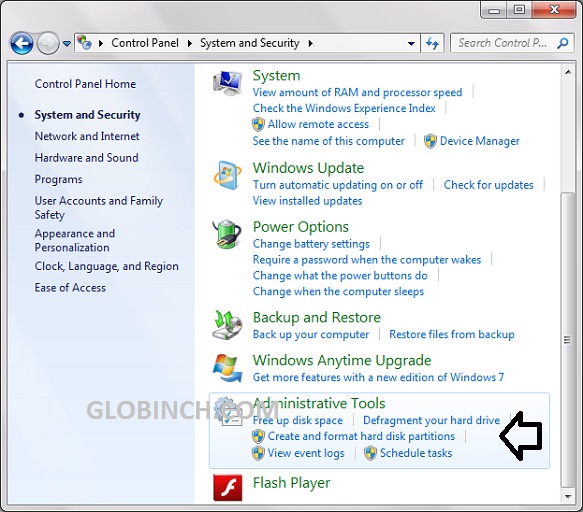
To access the disk management quickly directly, type “diskmgmt.msc” in command prompt or windows start menu search box and hit enter.
Both the above method will open the Windows 7 Disk Management utility. There you can see all the existing hard disk volume information.
Shrink Existing Partition to Create Free Space
Now you need to make some unallocated disk by shrinking existing disk. By shrinking the existing partition you can free up the disk space.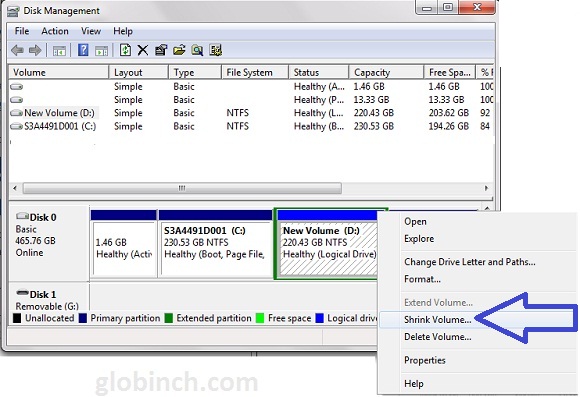 Now shrink the existing volume by selecting “Shrink Volume right click context menu.
Create a New Volume (Partition) Using the Free Space
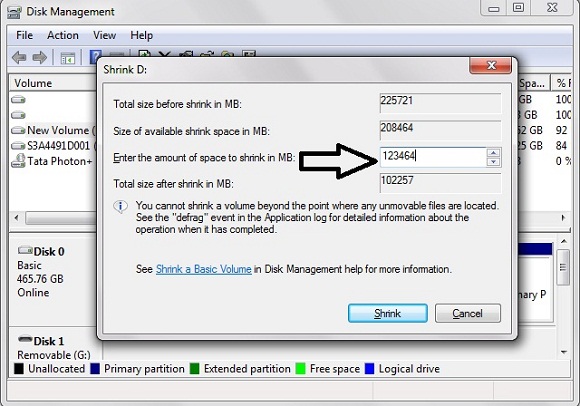
- The system will now check for available disk space and will report the availability as below. Here you can choose the new partition size (The amount of space to shrink in MB). In this window you can also see the maximum possible space, space after shrink and the size you have selected.
- Now the system will shrink an existing disk based on the size you have provided and will create an unallocated disk (Free Space). See below.
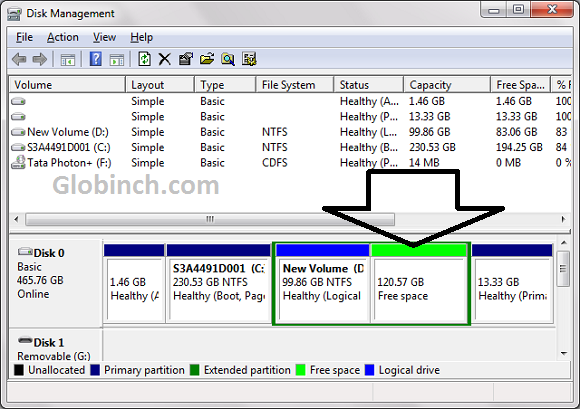
- Right click on the new free disk space and choose “New Volume”. This will open a “New simple volume wizard”.
Here you can select the volume size in MB.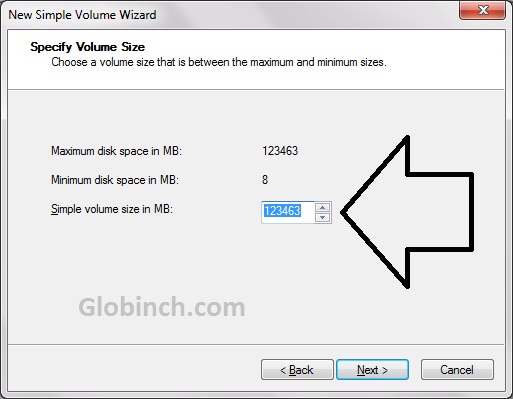
- You can assign drive letter of drive path in the next screen.
- Next step is to format the disk. You can assign a volume label to the disk.
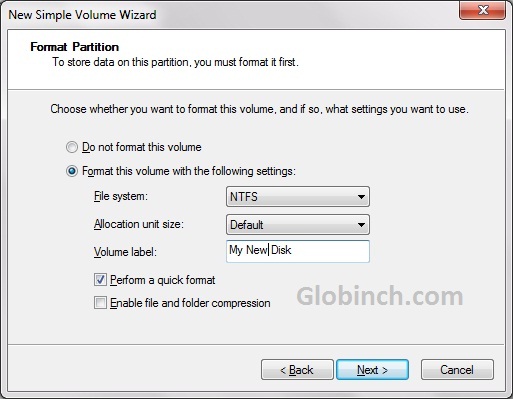
After the format the new disk partition will show up.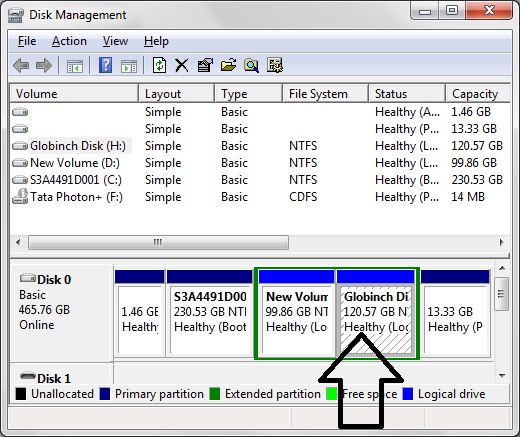
Extend an Existing Volume or Partition
Similarly to extend a volume you can right click on the drive and click Extend Volume, this will open up the “Extend Volume” wizard. The wizard will guide you in extending the selected volume space based on the available space.


Before you go, subscribe to get latest technology articles right in your mailbox!.