
Sometime we find Microsoft Windows Autoplay feature of windows very annoying.Autoplay begins reading from a drive as soon as you insert media in the drive.
It pop up a window every time you plug a drive into the laptop or desktop.As a result of Autoplay settings the setup file of programs and the music on audio media start immediately.
By default, Autoplay is disabled on removable drives, such as the floppy disk drive (but not the CD-ROM drive), and on network drives.
There are different methods to turn off or on the auto-play feature in windows. Either you can configure your system using windows Group Policy Editor or you can the Microsoft powertoy to handle the auto-play feature. Let us discuss how to use both these options.
Methods to Turns off or Turn On Autoplay.
Using Group Policy Editor to Turns off or Turn On Autoplay.
Steps:
- Go to Start and Run. Type gpedit.msc and press OK.
- This will open Group Policy Editor.
- Go to Computer Configuration -> Administratie Templates ->System
- In the right panel right click on “Turn Off Autoplay” and select properties.
- Select the enable radio button and then select “Turn Off Autoplay on:” options.
- You can select “All drives” or “CD-Rom Drives“.
As mentioned in the explanation section this setting appears in both the Computer Configuration and User Configuration folders. If the settings conflict, the setting in Computer Configuration takes precedence over the setting in User Configuration.
See the screen-shot below.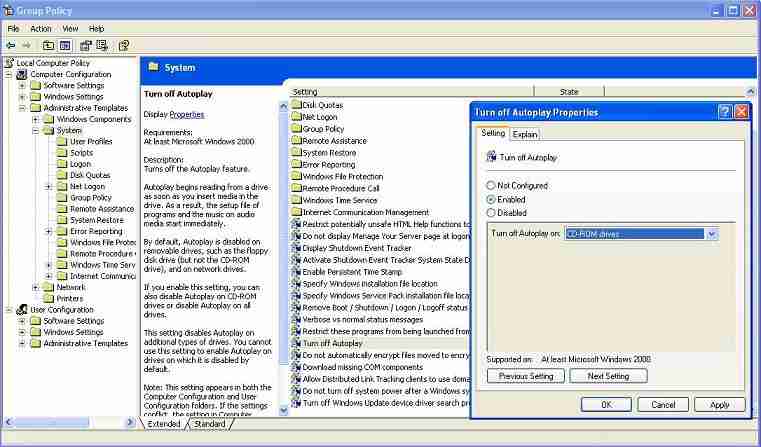
Read more about Group Policy Editor
Using Tweak UI
- Download and install Tweak UI Powertoy from Microsoft. Using TweakUI is the best and easiest way to enable or disable the Autoplay feature of Windows.
- Click on “My Computer” in the Tweak UI menu tree and then AutoPlay menu item.Here there are many options to enable or disable Autoplay feature of each drive.
See the screen-shot below.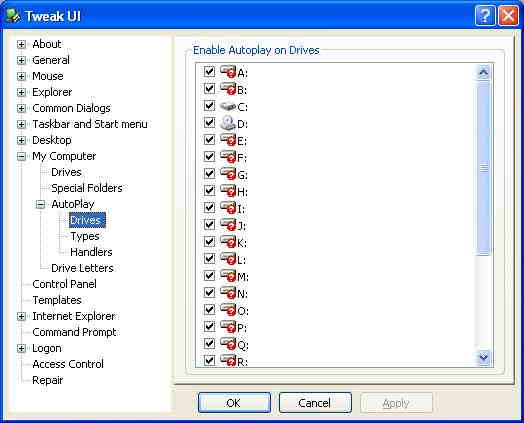
Read more about Tweak UI Windows Powertoy
Using Windows Explorer and Drive Properties.
- Open one Windows Explorer and right click on the drive you want to enable or disable Autoplay.
- Click on Properties and Select the “Autoplay” tab of the properties window.
- Here you can select the appropriate content and Action.


Before you go, subscribe to get latest technology articles right in your mailbox!.
Thanks for the method "Using Group Policy Editor to Turns off or Turn On Autoplay". It solved lack of Autoplay on my PC, after I selected button "Disabled" in Turn Off Autoplay Properties.