
Windows services monitor tools are really useful if you frequently manage Windows Services manually. Windows services are long-running executables that do not require user intervention and can be configured to start during boot time or they can be started manually when required. MSConfig utility can be used to modify start-up programs, control the windows services. Free tools like Computer_ID provide you computer system information in one click. If you want to monitor and verify windows system process, task and DLLs, then Process Explorer are a good choice.
Windows services monitor tool are useful ,if you are a software programmer or person who manages windows services manually. There are many ways to view and manage windows services. Windows itself provides options and tools to achieve this.
- You can manage the services by launching “Services” from the Windows Control Panel ->Administrative Tools.
- Type “Services.msc” in the Run command on Start menu. This will open Services window.
- In Windows Vista and later versions (including Windows 7) the windows services can be started or stopped in the Services tab in Windows Task Manager.
Windows service monitor from CodePlex is a simple utility that can be used to monitor start / stop any windows services. The utility is represented by icon in a windows system tray. Using Windows service monitor you can configure multiple windows services for monitoring as below.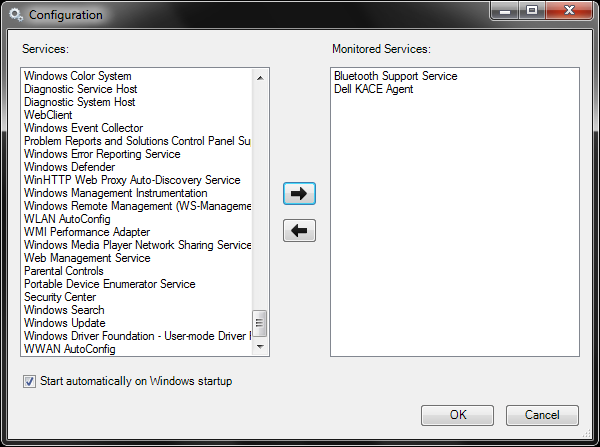
You can easily identify the status of monitored windows services based on the color of the tray icon. When all services are started the tray icon will be green. Yellow icon tells that few of the services are not yet started and grey icon indicates that all of the monitored services are stopped.
You can right click on the tray icon and quickly start and stop the services. This is really useful because you don’t have to go through all the steps to open the service management console to start or stop a service. You can configure all those services you want to monitor and control and then manage them just by right clicking on the tray icon.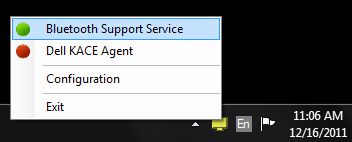
Windows Service Monitor is nothing but a more user friendly but simple version of “services.msc“.
Get Windows Service Monitor


Before you go, subscribe to get latest technology articles right in your mailbox!.