

Tabbed windows explorer is still the missing feature of Windows explorer. The tabbed file explorer will give you many advantages. You can quickly navigate between windows if you have a tabbed interface similar to tabbed internet browsers. Even though the new version Windows 8 Explorer has a ribbon UI the tabbed interface is still missing.
If you usually work with multiple Windows explorer on your Windows then tabbed file explorer definitely will save lot of time. If you have a tabbed windows explorer then you don’t have to have many explorer windows open while doing different tasks on your Windows computer.
Related:
We have already discussed about the best Free Windows Explorer Alternatives like CubicExplorer and SE-Explorer which provides many features including the tabbed interface.
In this article let us get introduced to few extensions for Windows Explorer that will add tabbed browsing to Microsoft’s file browser and many other features.
Best free tools to make Windows Explorer a Tabbed File Explorer
QTTabBar
QTTabBar is a freeware app extension for Windows Explorer that brings tabbed browsing to Microsoft’s file browser, along with a host of other great features. Once installed, in Windows 8 you can see the tabs available below the ribbon UI. The main advantage is that you can quickly navigate between explorer windows without having minimized it. You can create a group of tabs or even clone a particular tab. You can also close all tabs at once. There is also a search included in the add-on.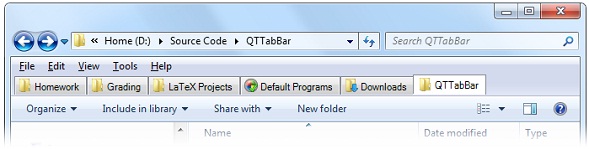 Get QTTabBar
TabExplorer
TabExplorer add tabs to windows explorer. Make Windows Explorer like a tabbed browser. You can configure it to auto Run when system startup. The tool developers guarantee no Adware/Spyware/Virus. TabExplorer supports Windows 7/Windows Vista/WinXP/Windows 2000.
Get TabExplorer
Clover
Clover is an extension of the Windows Explorer, to add multi-tab functionality similar to Google Chrome browser. The shortcuts available are Ctrl + T to open the page, and Ctrl + W close the page, Ctrl + Tab to switch pages. You can press Ctrl + D to add the current path, or directly to the folder into the bookmarks bar.
Get Clover


Before you go, subscribe to get latest technology articles right in your mailbox!.