
How do you hyperlink the words or phrases of your blog post to other relevant resources of the internet.Finding the most relevant site manually is a time consuming process.Also it is important that you link to the most relevant site with good Page Rank. It is important in terms of search engine optimization.
Read: How does search engines like Google handle rel=”nofollow” links?
So how do you automate or simplify this process? If your blog platform is WordPress you have a very good option available here. (Read: 9 Best and Must Have WordPress Plugins)
Smartlinker is a toolbar on the WordPress TinyMCE editor that enables you to hyperlink words and phrases in your blog.Using Smartlinker you can type word or phrase, select the word which you want to link and right click to get a list of hyperlinks.
Once downloaded and installed this plugin activate it from your wordpress admin console.
Read:Inbound Links – Get More web site traffic with Backlinks
Once activated the WordPress TinyMCE editor will have a few new controls as shown in the below screen-shot.
When you edit/type your new post or article you can
- Select Word > Right Click > Hyperlink.
- Select Word > Press Smartlink button > Hyperlink.
If the word/phrase is present in the inetlinker database, a list of hyperlinks will be displayed.
You can see the preview of the hyperlink by clicking the preview/Hyperlink of each hyperlink.
A word or phrase can be the name of a person, place or thing and those links are are crawled from the internet.
See the screen shot below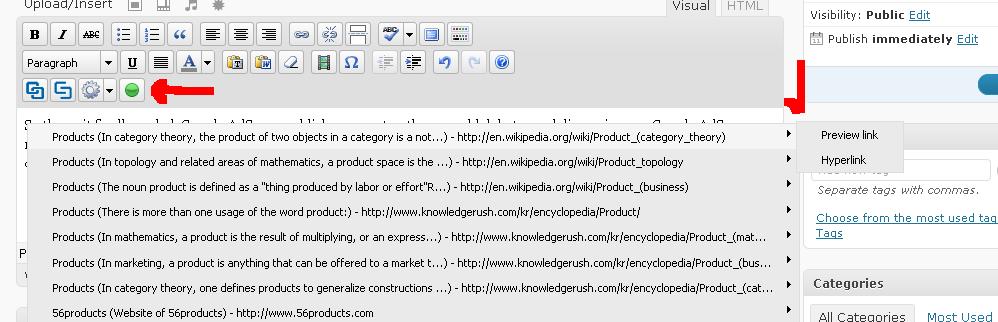
You can download this useful wordpress plug-in from here.


Before you go, subscribe to get latest technology articles right in your mailbox!.