
Google authorship is a new feature addition from Google to display author information in search results. Google displays author name as well as author’s Google profile picture in search results. This will appear near to the content that you may have written and is available in the Google Search Result.
As mentioned by Google this feature is being rolled out gradually and will be implemented algorithmically.
If you are a blog author or website owner who publishes quality content, you can take advantage of this new Google Authorship feature. If your content appears in Google Search Engine Result Page (SERP), then Google may display your Google Profile Picture and name next to the displayed result. The profile picture in the search result will link to your Google Profile page.
How to Display your Profile Picture in Google Search Result next to your content?
If you are a Blog author or website owner you can configure the “Authorship” so that your Google Profile picture appears next to your content in Google Search Result.
You need to take few steps to make sure that your profile and your blog are ready for “Authorship“. This is nothing but to tell the Google Search Engine that you are the author of a particular content. You need to complete the below steps to achieve this. These are not complicated steps but simple and straightforward.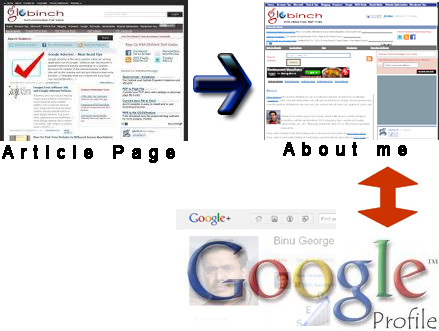
Step 1: Setup the Google Profile
Create a Google Profile (If you have not already created) and add photograph of yourself as the Profile Picture. Google says the photograph should be of high quality in order to be eligible for be shown as a thumbnail in search results.
Authorship Markup anchor tag (<a> rel attributes (rel=”author” and rel=”me”) and XFN Microformats
Authorship can be marked using the “author” value of the “rel” attribute of anchor tag. (HTML5 <a> rel Attribute ). Also the XFN identity rel Value rel=”me” link attribute defined in XFN microformat can be used to establish a link between profile pages. XFN™ (XHTML Friends Network) is a unique and simple way to represent human relationships using hyperlinks.
Let us see how you can set the identify author information using the above information and link them to your Google Profile.
Step 2 : Create “About Me” page and link it to Your Google profile using the rel=”me” identity attribute
If you own a blog or website you should be having an “About Me” page. Here you can link your Google profile using the rel=”me” identity attribute. For example you can add something similar to the below.
1 | <a rel="me" href="https://plus.google.com/117341404717640025660/"> Binu George </a> |
Step 3: Link every blog article to the About Me page using rel=”author” link attribute
You need to link every article to your “About Me” page now. For example you can add something similar to the below one
1 | <a rel="author" href="https://www.globinch.com/about/">Binu George</a> |
Step 4: Now link your “About Me” to Google Profile
Now you need to add your blog URL to the Links section of your Google Profile. Sign in to your Google Profiles account. You can see the “Links” Section. Under the links, add a new custom link that points to your “About Me” page. Tick the option that says “This page is specifically about me” and save the changes.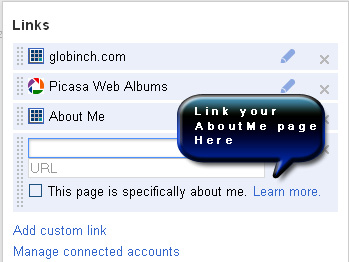
Step 5: How To Test your Authorship links
You can test the changes using the rich snippets testing tool from Google Webmaster tools . This tool will tell you whether you have configured all the links related to authorship properly or not.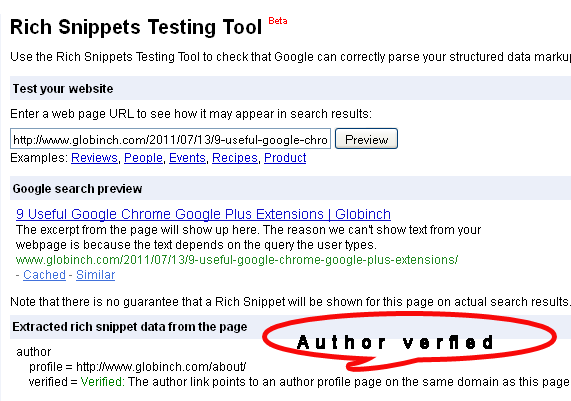
That’s all. Now sit back and relax. Next time Google spider crawls your site, they will find your Authorship links . If you are lucky and has already done good SEO homework and optimization you may see your profile picture next to your content in Google Search Result page.


Before you go, subscribe to get latest technology articles right in your mailbox!.
I followed all the steps as you have mentioned . I have added the correct about page link to my google profile , but when i check it in the rich snippet tool , instead of about it shows /author/admin as the author link
linked author profile = http://www.techifire.com/author/admin/
Error: Author profile page does not have a rel=me link to a Google Profile
dont know why its showing the wrong link
@Abhishek,
I checked your site and could not find any links with rel="author" attribute on anchor tag !
I also think i did everything as i was supposed to, but my snippet site looks different… maybe they just modified it?
Anyways what it sais is
Verified: Authorship markup is correct for this page
But i cannot see picture next to my search results
@Virpo
Hmm. Keep i ready for Google Bot. That is the only step we can do now. To make it appear in search result is upto Google. As of now Google shows very limited number of profiles only ( Like that of Matt Cutts)
Thank you Binu for this article, especially the link to "rich snippets testing tool." I finally confirmed my authorship *phew*.
Thanks for the comments Rahul. Keep visiting
Sweet it worked! Thanks!
Thanks John. Thanks for the comment and for visiting globinch.com
I did all these steps but google still saying this:
"Error: Author profile page does not have a rel=me link to a Google Profile"
I double check my link and im pretty sure that it has a rel=me on the link. Any idea?
You must point back all your posts to your author page with the rel=author
<code> Binu George</code>
I did first for my site and then for my personal blog.
1.For my site it works like a charm following update guide from Google
http://support.google.com/webmasters/bin/answer.p…
Option 2
The result here
http://www.google.com/webmasters/tools/richsnippe…
Noted that NO rel="me" at all and the "Linked author profile" points directly to Google+ profile
2. Then I deployed same way to my blog suddenly I got error message
"Error: Author profile page does not have a rel=me link to a Google Profile"
And It took me >2 hours to figure out what happened but I fail ,till I found your article and Did in old-style way, It WORKS
http://www.google.com/webmasters/tools/richsnippe…
Final words: I don't know what happened….So confusing.
Thanks.. It was a great tips.